
You receive an email asking you to take action. Sounds suspicious, right? But don’t worry, You can be a hero by taking correct action and giving your IT department the information they need to defend your organization against the effects of malicious email attacks. It’s easy, thanks to the Phish Alert Button or PAB.
Be a Hero : Use the Phish Alert Button
- How do I know what to report?
You should only report messages you suspect are malicious, like phishing or spear phishing emails. Reporting annoying messages, like spam, to IT will waste their time and resources.
Spam is unsolicited and unwanted email, typically sent to try to sell you something. While it is often annoying and misleading, it is rarely malicious.
Simply delete it!
Phishing messages are bulk emails, typically appearing to be from a reputable source, that ask you to take a specific action that can cause damage to you or your organization. These messages are malicious.
Report it with the PAB!
Spear phishing emails are targeted attacks on a person or organization, occurring after detailed research in order to make them seem especially real. These messages are extremely malicious and can lead to very damaging consequences.
Report it with the PAB! - Where do I find the PAB in Outlook for Office 365?
While viewing your email: The Phish Alert Button is shown as a text link toward the top of any open email or You can also find it in your toolbar. Look for the orange “fish hook” icon.
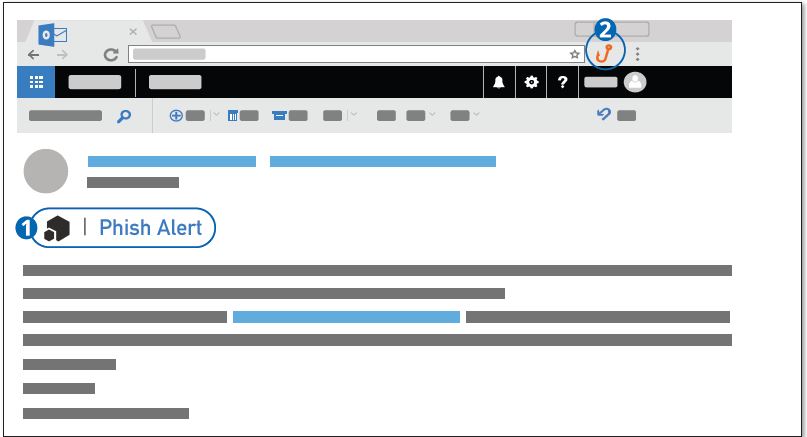
- Report
Report suspected phishing emails by clicking the Phish Alert link or clicking the toolbar button.
- Confirm
The pop-up box you see will prompt you to confirm your action. Once confirmed, the email in question will be immediately forwarded to your organization’s IT team.
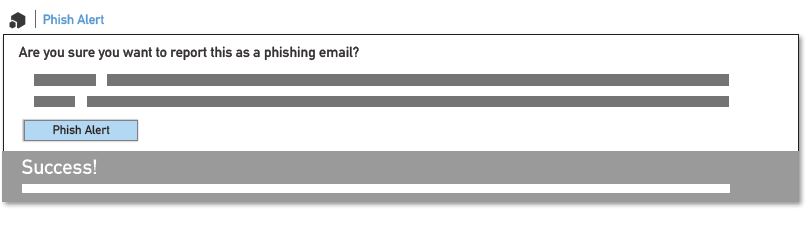
Stop. Look. Think. Report!
Remember, you are the last line of defense against email based criminal activity. Never click on a link or open an attachment in any unexpected or unsolicited email.