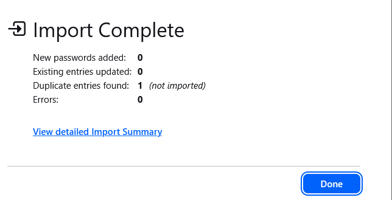
EXPORTING SAVED PASSWORDS USING GOOGLE CHROME WEB BROWSER 
1.) Click three-dot ellipsis in top right corner of the Google Chrome browser (next to your profile picture). 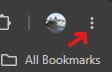
2.) Choose Passwords and Auto-Fill.
3.) Choose Google Password Manager.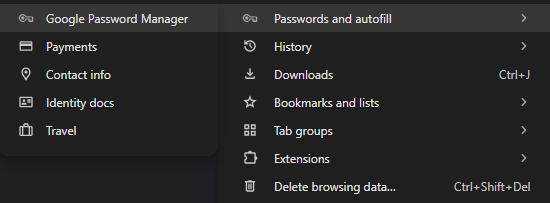
4.) Navigate to Settings in the top left.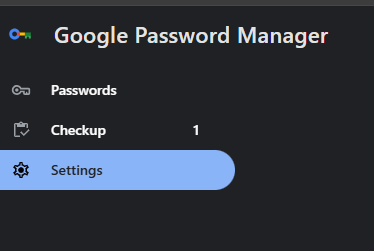
5.) Choose Export Bookmarks – Download File.
6.) Name & Save your Chrome Passwords in your YMCASD OneDrive Folder.

IMPORTING CHROME PASSWORDS
- Repeat steps 1-4 above.
- Choose Import Passwords.

- Choose Select File.
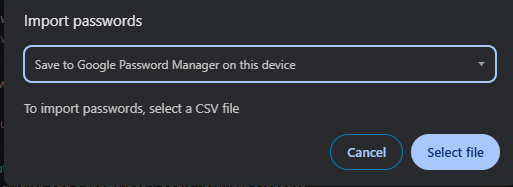
- Find the previously saved Chrome Password file in your OneDrive, and choose Open.
EXPORTING SAVED PASSWORDS USING MICROSOFT EDGE BROWSER 
1.) Click three-dot ellipsis next to your profile picture in top-right corner of the Edge browser.
2.) Choose Passwords
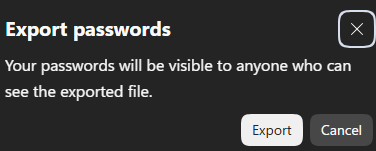
3.) Choose the three-dot ellipsis (next to “+Add”), and choose Export Passwords – a window will pop up, click Export – you may be prompted to enter your Windows (YSD) Password.
5.) Name & Save the Edge Password File in your YMCASD OneDrive Folder. 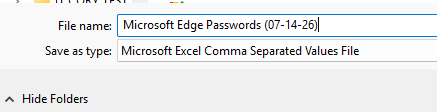
IMPORTING EDGE BROWSER PASSWORDS
- Repeat steps 1 & 2 above.
- Choose Import Passwords.

- Select Import From “Passwords CSV File”.
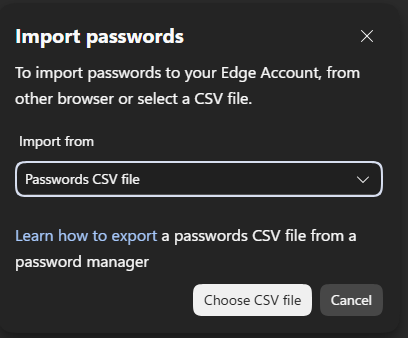
- Find and select the previously saved Edge .csv file in your YSD OneDrive Folder & click Open.

EXPORTING SAVED PASSWORDS USING MOZILLA FIREFOX WEB BROWSER 
1.) Click the three horizontal lines button in the top right hand corner of the Mozilla Firefox Web Browser.
2.) Choose Passwords.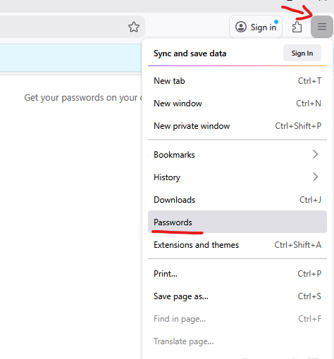
3.) Click on the three-dot ellipsis on the right hand side, and choose Export Passwords.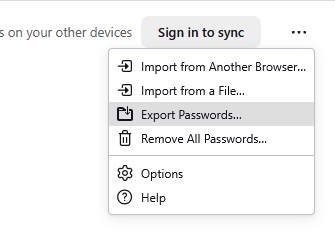
4.) Choose Continue with Export. 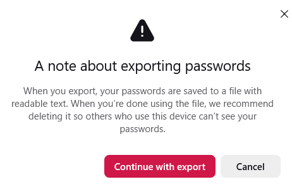
5.) Name and Save the Mozilla Browser password file in your OneDrive Folder.
IMPORTING MOZILLA FIREFOX PASSWORDS
- Repeat steps 1 & 2 Above.
- Click on the three-dot ellipsis on the right hand side and choose Import From a File.
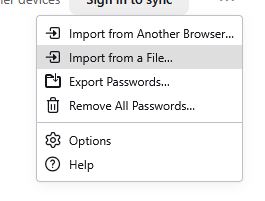
- Find your previously saved Mozilla Password file in your YSD OneDrive Folder and choose Open.