CONNECTING TO ZOOM ROOMS
Starting a Zoom Meeting from a Zoom Room :
1.) Tap the HOME icon on the room’s iPad/Zoom Controller.
2.) Tap the scheduled meeting and click START.
3.) Other meeting attendees can then join the meeting using several methods:
- Using the Meeting invite link.
- Using the Meeting ID Number & Meeting Passcode
- By pairing with the room/using the sharing key.
Using the Meeting Invite Link to join an existing meeting
In the email inviting you to the scheduled Zoom Meeting, you will find a link that will allow you to join the meeting, as well as the Meeting ID Number and the Passcode to the meeting. Example below.

Using the Meeting ID Number to join an existing meeting
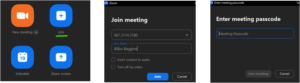
- Click Home in the left panel.
- Click Join and enter the Meeting ID # that was sent with the invite.
- Add your name & make sure both boxes are unchecked & click Join
- Enter the Meeting Passcode (provided in your email invite)
Pairing your computer with a Zoom Room (using a Sharing Key)
*To pair your laptop with an existing Zoom Room at one of our branches, you must be physically in the branch and in or adjacent to the Zoom Room.
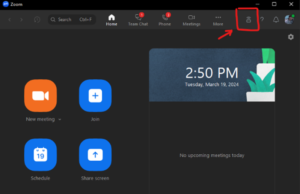
1.) Click the room-share icon here in the top right corner of the screen.
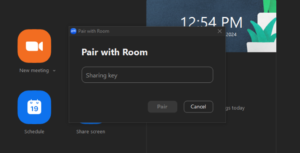
2.) Enter the Meeting Sharing Key to Pair with Room.
*The Meeting Sharing Key will be displayed on the Zoom Room screen within the Zoom Room.
Join scheduled meeting from room using Zoom App
1.) Click Meetings on the top bar of your Zoom App.

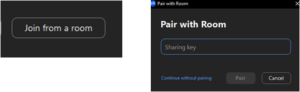
2.) Click Join from a Room & when prompted to Pair with Room Enter the Sharing Key and click Pair.