The move to the new CCC Azure environment will require you to do a few steps to ensure you have the ability to access the resource.
An active YMCA account with approved access is needed to access CCC Azure.
If you don’t know your account details or need help recovering your password, click here for details on how to recover it.
NEW CCC AZURE READINESS TEST STEPS
- PC REBOOT:
Restart your computer today and within a few minutes please look for one of the following two icons to appear on your desktop: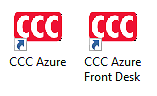
PLEASE NOTE: These will be your new CCC shortcuts and the only ones that will work on THURSDAY, DEC 16TH - CCC LOGIN:
Double-click either of the shortcuts and log in. IMPORTANT: The first time you do this may take a bit longer – this is expected since the first login runs through several setup steps that configure the new environment for you. Subsequent log ins should be much faster. If a log in attempt fails or the window disappears, simply try a second time.
Login should look exactly like your live environment (see below).
NOTE: Your new CCC account login will be the same as your current one, however all logins are DISABLED on the new server until Thursday, so you will NOT be able to log into CCC at this time, however getting to this login screen is the critical step needed to ensure that your profile is configured and ready for Thursday’s launch. You may cancel out of this screen when you see it: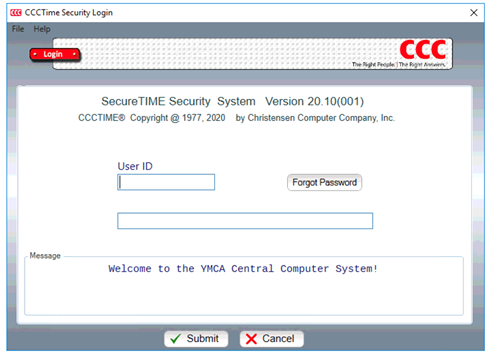
IMPORTANT: Please make sure you complete this step prior to moving to the next one. If you do not, the next step will not work - NEW CCC EXPORTS:
Once you have completed the previous step, please look for the following icon on your desktop:

- New CCC EXPORTS (Cont.)
For those of you that currently use an H drive that points to your CCC Exports folder, the drive will be the new version of it and will be mapped to your computer as the Z drive.
Double clicking the shortcut will bring up the following screen. Please enter your full email, click enter, then type in your password.
NOTE: You will not see anything being typed on the command prompt as you type your password, this is expected. Press ENTER once you’ve finished typing your password.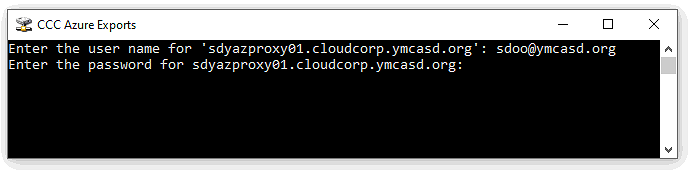
DONE! - NEW CCC EXPORTS (Cont.)
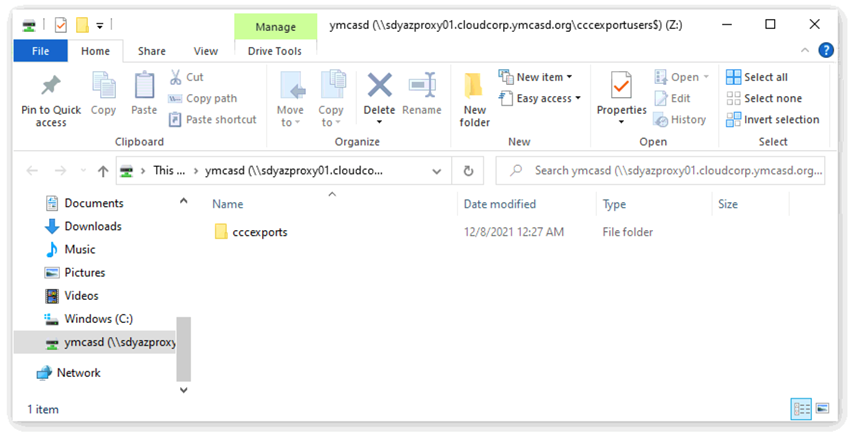
Once you’ve logged in, you should see the Z drive open and find a folder named cccexports inside – this folder will be empty to start but any future RTF’d files from the new CCC server will be stored here. You may continue referencing your H drive for any prior files.