
1.) Open a web browser & log into outlook.office.com. Then sign in using your YMCA Credentials.
2.) Click the Calendar Icon in the top left pane & then click Add Calendar. 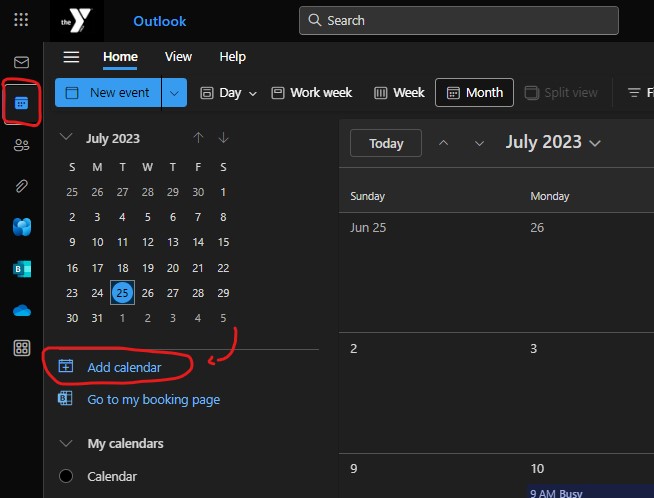
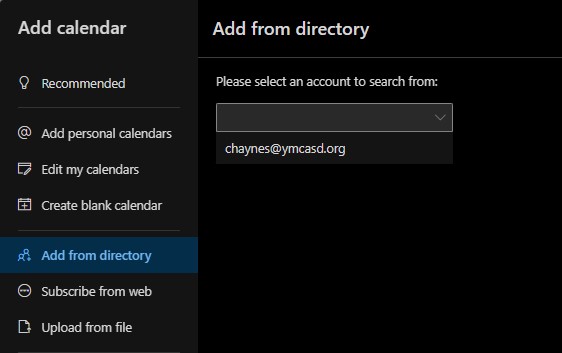
3.) Choose & click add from directory – then select your email address from the drop down menu.
4.) Type/enter & choose the name of the Resource/Room Calendar you wish to add.
*(you can only add one Room/Resource Calendar at a time)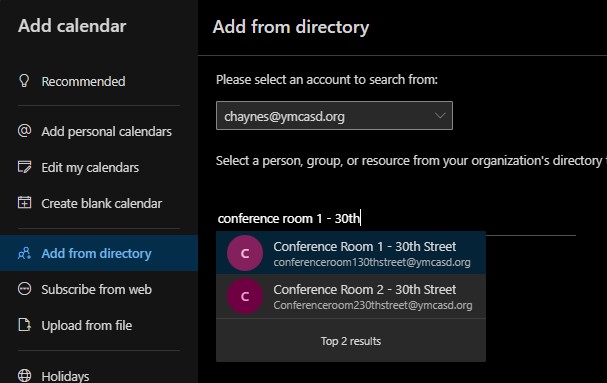
5.) Next, under the Add To drop down, choose the appropriate section you’d like to add the calendar to in your Outlook & click the Add button below.
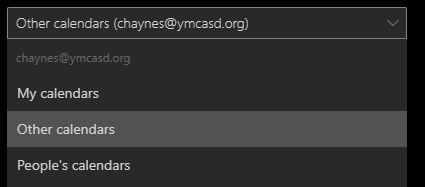
6.) The Resource Calendar that was just added will now show in the left pane of your Outlook Calendar under where you just placed it in the drop-down above.
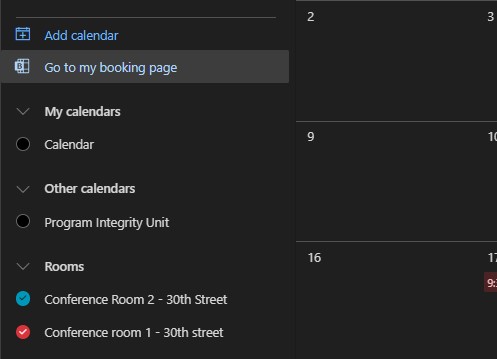
You can select multiple room calendars at once to see scheduled events simultaneously on the master calendar.
Note* Staff with multiple calendars added may need to click “Show All” to expand the menus to see all calendars at once.
If facing any issues when adding, please fill out a Helpdesk Support Ticket and we can assist.