
Zoom Phone is an add-on to your basic YMCA Zoom account and allows you to make and receive phone calls via your computer, mobile device or Zoom-enabled desktop phone.
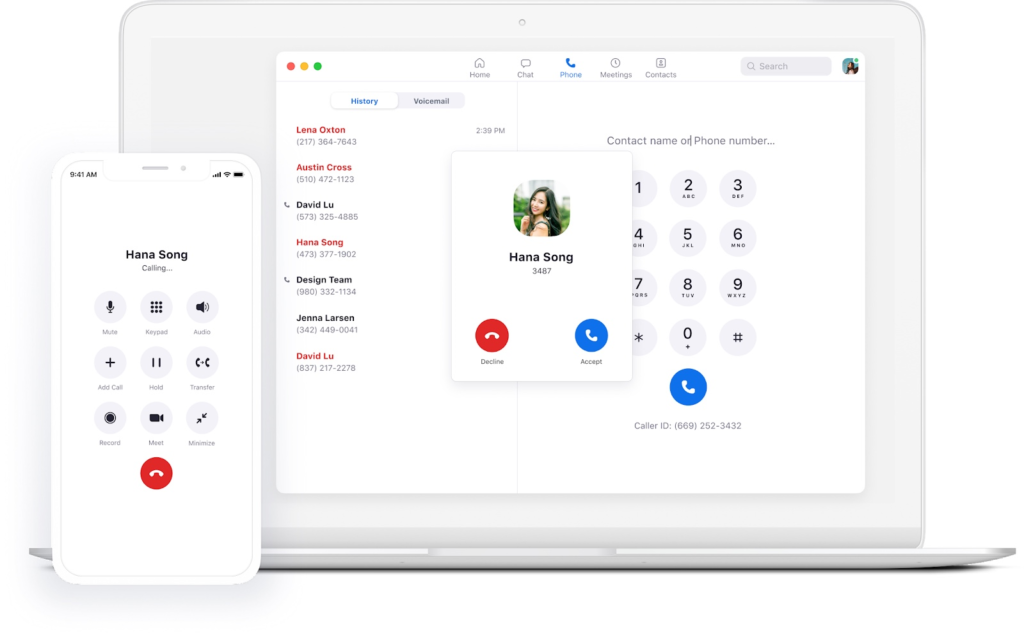
Zoom phone requires licensing and a YMCA user account. New users should request access through their direct supervisors who should relay the request to YMCA IT via helpdesk.
Getting Started with Zoom Phone
Phone settings
After the initial setup, you should adjust your Zoom Phone settings in the web portal.
- Sign in to the Zoom web portal.
- Click Phone, then click the Settings tab.
Here are a few essential settings you may want to change:
- PIN Code: to be used to access voicemail, Hot Desking, and unlock desk phones.
- Voicemail Greeting: Audio that plays before Zoom Phone routes calls to your voicemail. You can customize this by recording audio directly in the web portal or uploading an audio file.
Contacts
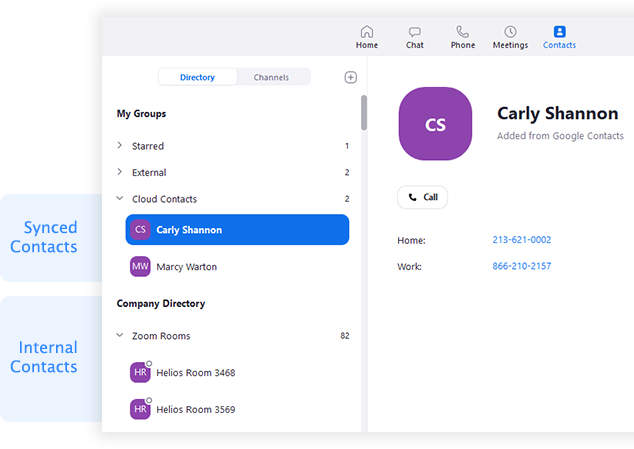
By default, you can call the contacts directory in the Zoom desktop client or mobile app to call people in the same organization. Follow these articles to add contacts from third-party services:
- Zoom Desktop client: Sync your contacts with Google, Office 365, or Exchange. After syncing your contacts, you can add synced contacts using your call history or voicemail.
- Zoom mobile app: View your phone’s contacts in the Zoom Phone mobile app.
Phone calls
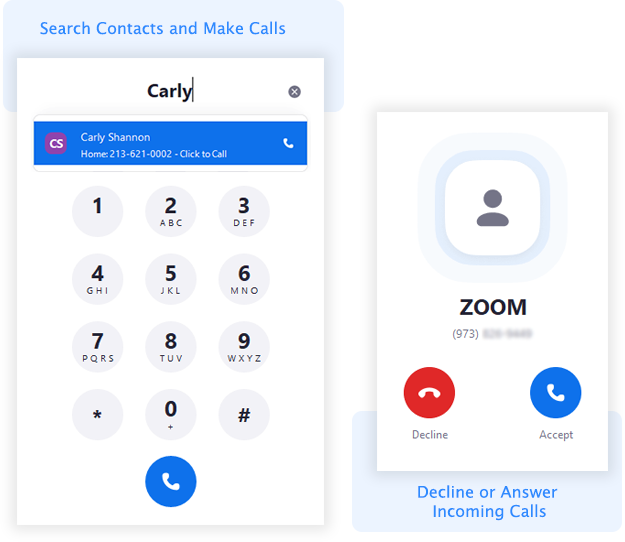
After setup, you can start making and receiving calls using Zoom Phone. Make calls using the dial pad or search through your internal, external or synced contacts. For incoming calls, you can decline a call to route it to your voicemail.
In-call controls
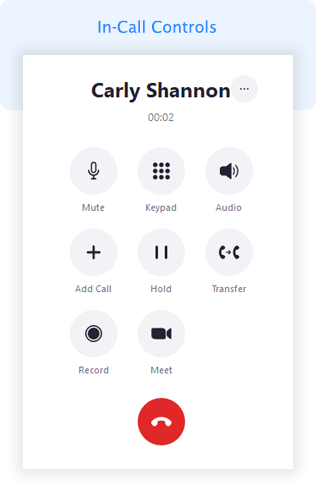
While in a call, you can:
- Access in-call controls like hold, record, and transfer.
- Start a Zoom meeting with the other person on the call.
- Use call flip to switch the device you are using for the call.
Voicemail
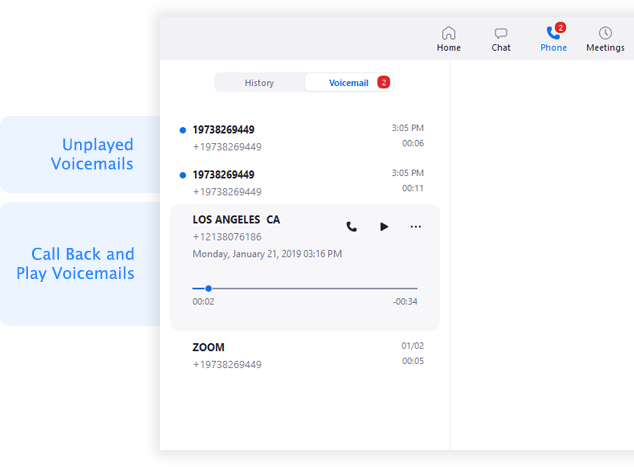
Zoom Phone forwards all unanswered and declined inbound calls to your voicemail. You can use the Zoom desktop client, mobile app, or web portal to play and manage your voicemail messages.
Call history and recordings
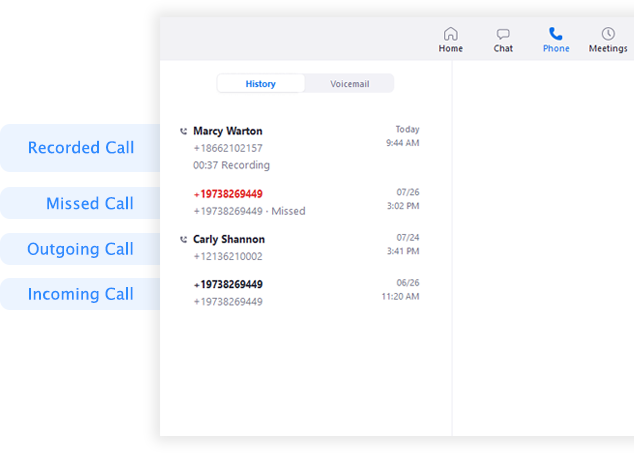
After making, receiving, or recording calls, you can check your call history and recordings on the Zoom desktop client, mobile app, or web portal.
Additional features
Once you are familiar with Zoom Phone, use these features to further enhance your experience:
- Zoom Desktop Client and Mobile App settings: View your Zoom Phone information including your company number, extension number, and direct phone numbers. You can also change settings for inbound call notifications.
- Blocked list: Change your settings to block specific phone numbers or prefixes from calling you.
- Call delegation: Assign another phone user to make and receive calls on your behalf.
- Shared voicemail inbox: Share you voicemails with another phone user in the same organization.
- Click to dial: Change your settings on Mac or Windows so you can click on a phone number to dial it in Zoom Phone.