OneDrive allows you to access files both locally and remotely across a number of devices including desktops, laptops, tablets and mobile devices.
OneDrive must be signed into with your YSD Account in order to save/sync and back up your files.
To ensure that you are signed into your YMCA of San Diego County OneDrive, follow the instructions below:
Ensure that you first are logged into your YSD Computer with your YSD Email and Password.
1.) Type “OneDrive” into the Windows Search Bar
2.) You’ll be prompted for your email address – enter your full YSD email (ex. below).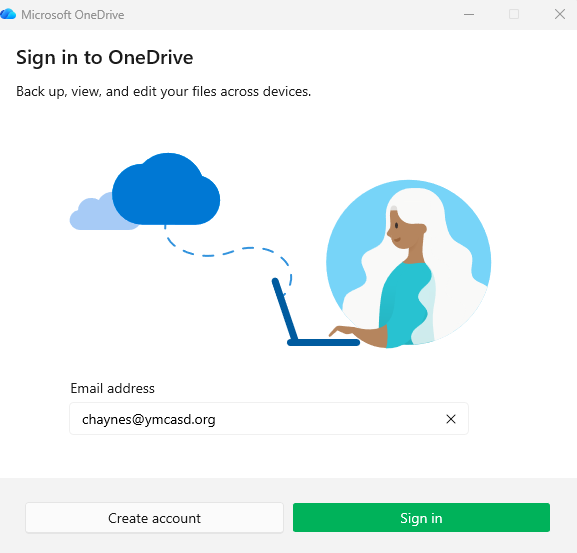
3.) You’ll be prompted to set up your OneDrive Folder along with it’s location on your PC – Click the Next Button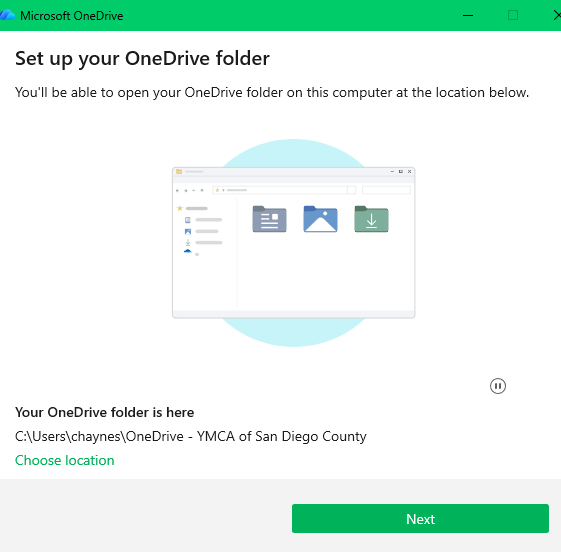
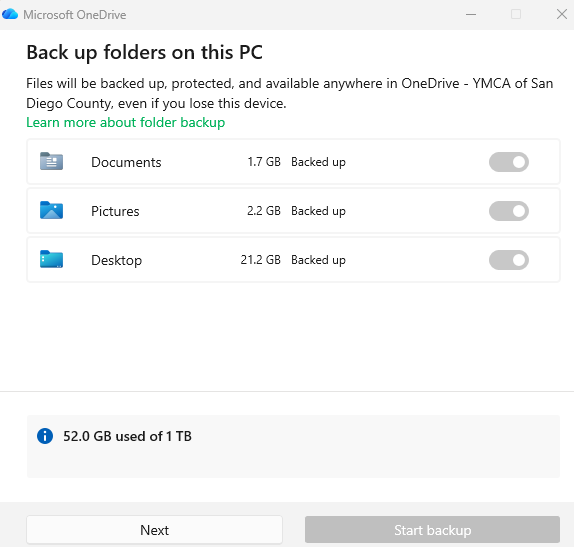
4.) The Back up Folders on this PC Window will appear.
Make sure the Documents, Pictures and Desktop Folders are being backed up (all 3 boxes are checked to the right and highlighted Green).
Once all 3 are checked and highlighted Green, click Start Backup. (when finished, you will see that the folders are “backed up” along with the storage space they are taking up).
*If you have already done this previously, the boxes will likely remain checked & greyed out, choose Next)
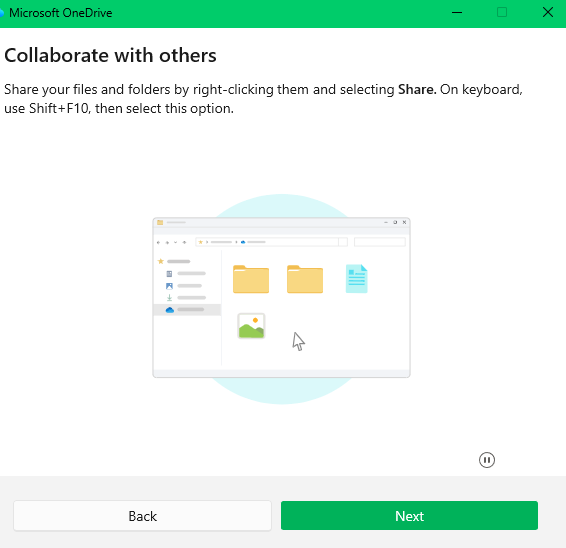
5.) When prompted to Move Files into your OneDrive Folder, choose Next. Then, when asked to collaborate with others, choose Next. 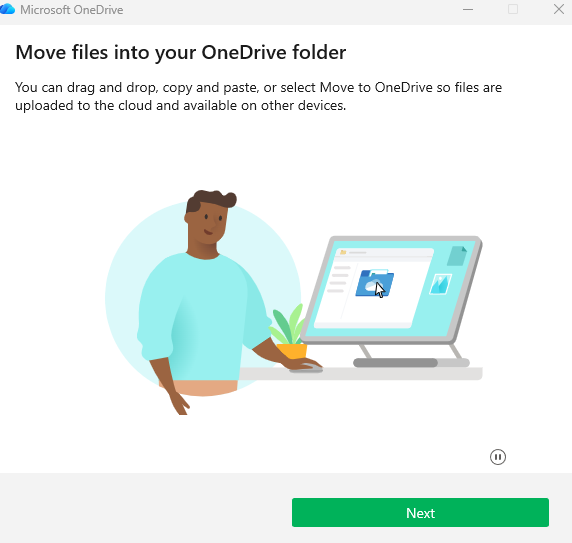
6.) You’ll then be shown what the various OneDrive Icons next to your backed up files mean, choose Next. 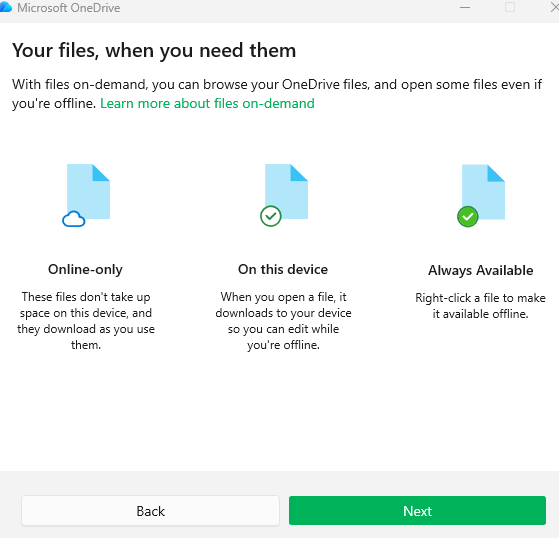
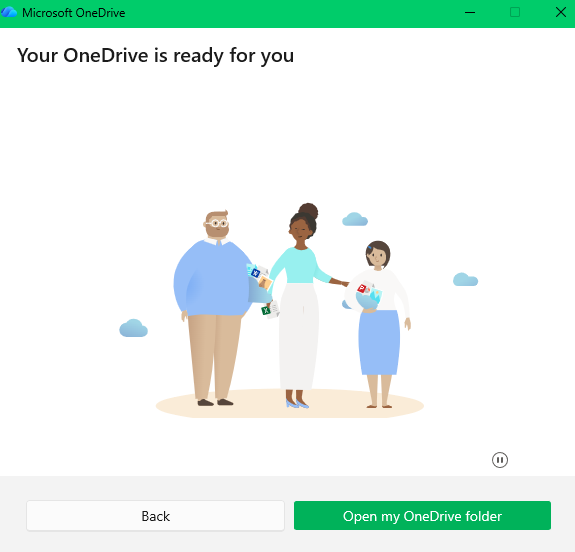
7.) Lastly, you’ll be prompted that OneDrive is ready for use and that it is syncing your files.
Choose Open My OneDrive Folder to view your saved & synced files in File Explorer.