
- Power on device
- At login screen, enter full email address and password
- At the bottom right corner of your computer, look for the cloud icon for OneDrive

- Login to OneDrive with full email.
- If you will be using Microsoft Teams, verify it is installed by searching for Microsoft Teams in the search bar or application list. The icon for Microsoft Teams is
 .
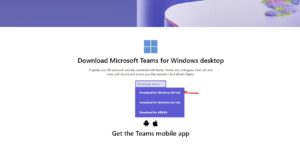
. - If you do not have Microsoft Teams (Work or School), Open Microsoft Edge and navigate to Download Microsoft Teams Desktop and Mobile Apps | Microsoft Teams
Select download Teams, select “Download for Windows x64bit”
7. Open browser and navigate to office.com. Sign in with your YMCA Email
8. If you use WVD or Remote Desktop, open https://support.ymcasd.org/knowledge-base/windows-virtual-desktop/
Follow details from the article.
***For any issues please submit a request at https://helpdesk.ymcasd.org/home under the “IT support” portal. Additionally, you can submit a request using the support page https://support.ymcasd.org/submit-a-ticket/