
Chrome
You can take all your Chrome bookmarks with you using the steps below:
- On your computer, open Chrome.
- At the top right, click the Three-Dot Ellipsis.
- Select Bookmarks & Lists
- Select Bookmark Manager.
- In the top right hand corner, click the Three-Dot Ellipsis & select Export Bookmarks.
Chrome exports your bookmarks as an HTML file. Save this HTML file in your YMCA of San Diego OneDrive as “Bookmarks-(today’s date)”. You can also email it yourself if desired. Use this file to import your bookmarks into another browser.
(Microsoft) Edge
- On your computer open Edge & select the Three-Dot Ellipsis in the top right corner – choose Favorites.
- Under Favorites you will see another three-dot ellipsis in the top right corner. Click on it.
- Under “Export Favorites — Export your favorites and reading list to an HTML file” select “Favorites“.
- Click on “Export to file” save this HTML file as Bookmarks-(today’s date) in your YMCA of San Diego OneDrive Folder. You can also email it to yourself.
Firefox
-
Click the Library Button.
-
then click . Scroll to the bottom and click .
- From the toolbar on the Library window, select Other Bookmarks and click and choose
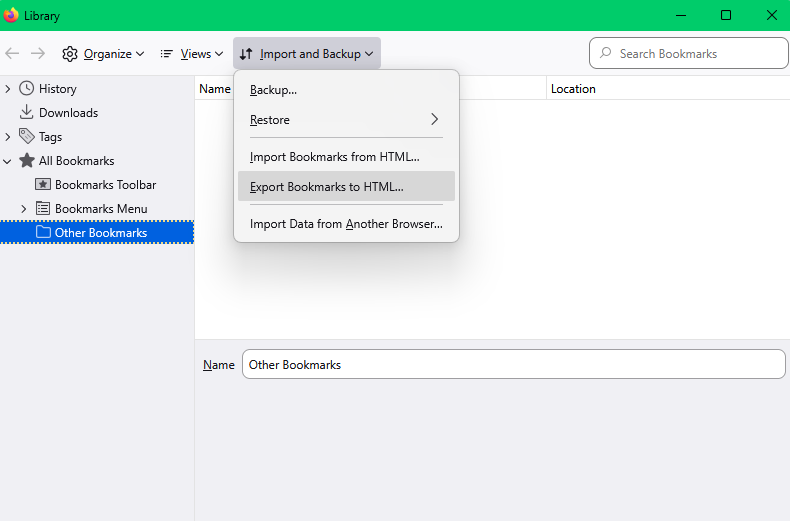
- In the Export Bookmarks File window that opens, choose the location to save the file – the best choice is your YMCA of San Diego County OneDrive Folder. The File is named bookmarks.html by default. Rename the file to “Bookmarks-(today’s Date)”. You can also email the HTML file to yourself.
- Click the button. The Export Bookmarks File window will close.
- Close the Library window.