
Kronos Work Force Ready is an association-wide time and attendance platform used by all YMCA staff.

An active employee Kronos account is needed to access Kronos.
Username is your 6-digit Employee ID number
Default password is Kronos@12 (case sensitive) – you will be prompted to change after first login.
Your password can be reset using the Forgot Password link found at the Kronos login screen.
• Open a support ticket via the Accounting Helpdesk Portal
• Contact THQ Payroll at [email protected]
Kronos Mobile App
Download the Mobile App “Kronos Workforce Ready” to your iPhone or Android phone
iOS | ANDROID
Once you have downloaded the app, complete the intial setup.
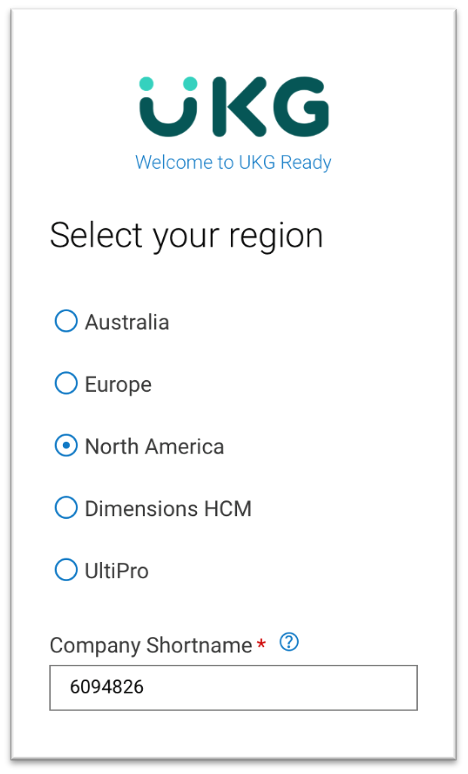
Select Region: North America
Enter the Company Code: 6094826
LOG IN
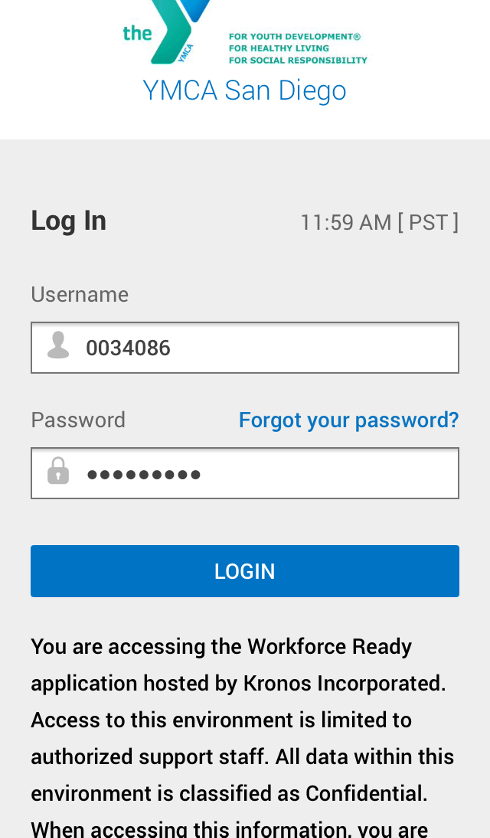
1. Enter your Username and Password
– Username is your 6-digit Employee ID number
– Password: The initial default password is Kronos@12 (case sensitive)
Upon login, the system will be prompt you to change your password. Your new password must contain at least 8 characters including 1 capital letter, 1 number, and 1 symbol.
2. Logging back into the mobile application
– Open the mobile application on your device.
– Input your username and password.
Note: If you forget your password, press the Forgot Your Password link and follow the screen prompts.
– Press Login.
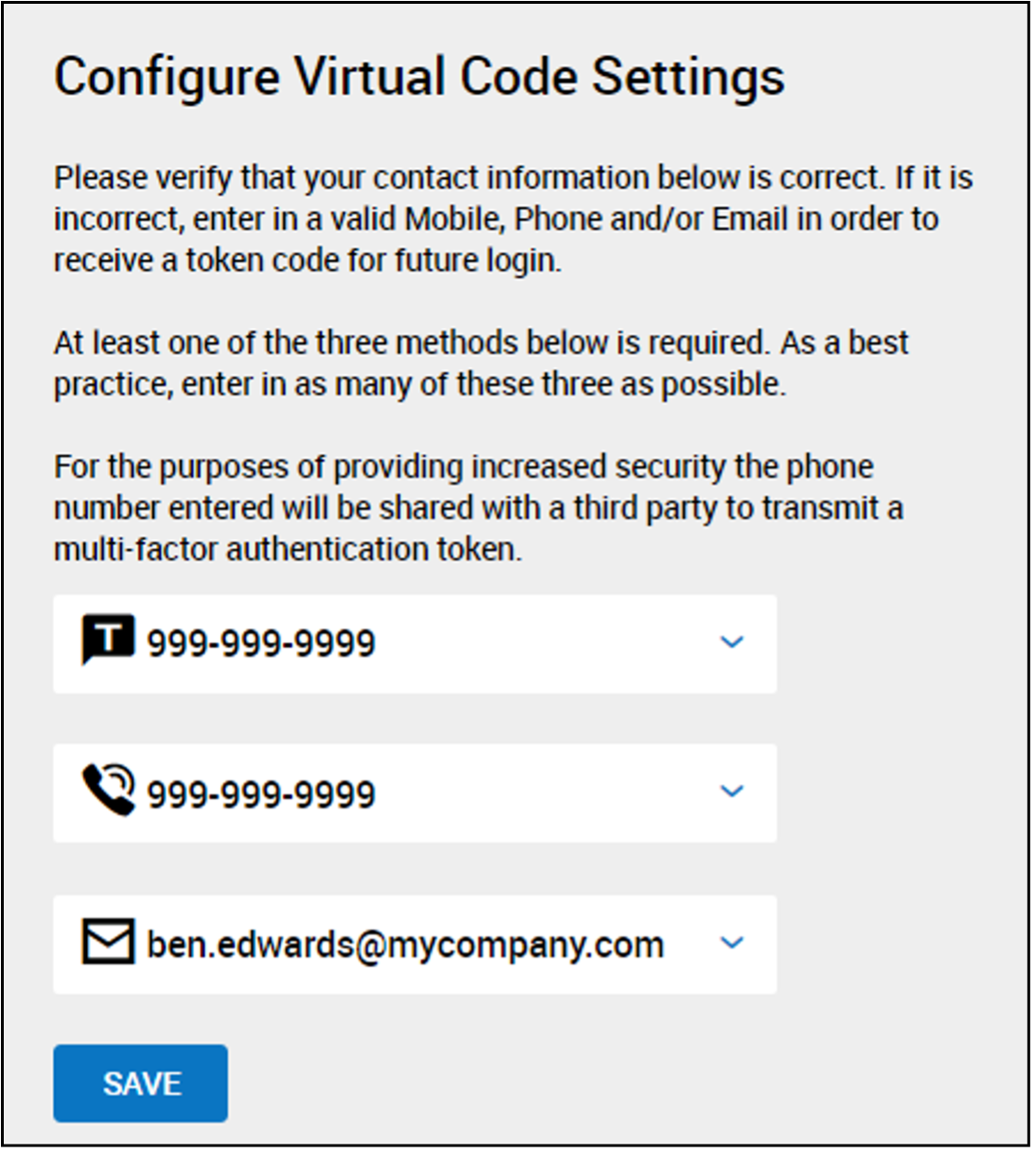
You will be asked for a VCA (Virtual Code Authentication)
A Virtual Code Authentication is a method for verifying your identity.
This method of verification uses a six-digit code sent to your phone or email.
The code is used in addition to your username and password.
VCA helps us to protect your sensitive personal data.
To get your VCA, enter your phone number and email address and hit Save. A code will be sent to you either TEXT or EMAIL. Use this code to finish setting up your Mobile App.
Make sure you click the box that saves the VCA code so you do not have to enter it each time.
Now that you have the app downloaded, you are ready to use it!
Cost Centers = Departments/GLs/Secondary Role
1. Click on the Kronos WFR icon on your mobile device
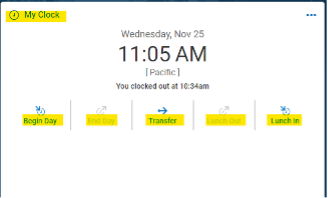
2. Select your time punch (Begin Day, End Day, Transfer, Lunch Out or Lunch In)
– Transfer is to be used if you are working outside of your primary jobs title or Cost Centers (GL’s)
– A Transfer at the beginning of your shift will allow you to pick your cost center and clock you in
2. You will see the current timesheet, but you can select the calendar image or blue arrows to toggle between pay periods as needed.
Please take a moment while clocked in, to review your punches for the pay-period.
If a comment/correction is needed follow the steps below.
2. Select Ellipsis at the bottom of the page
3. Select Change Request
4. Select Change Type
5. Select Date and Add Comment
6. Select Submit Changes
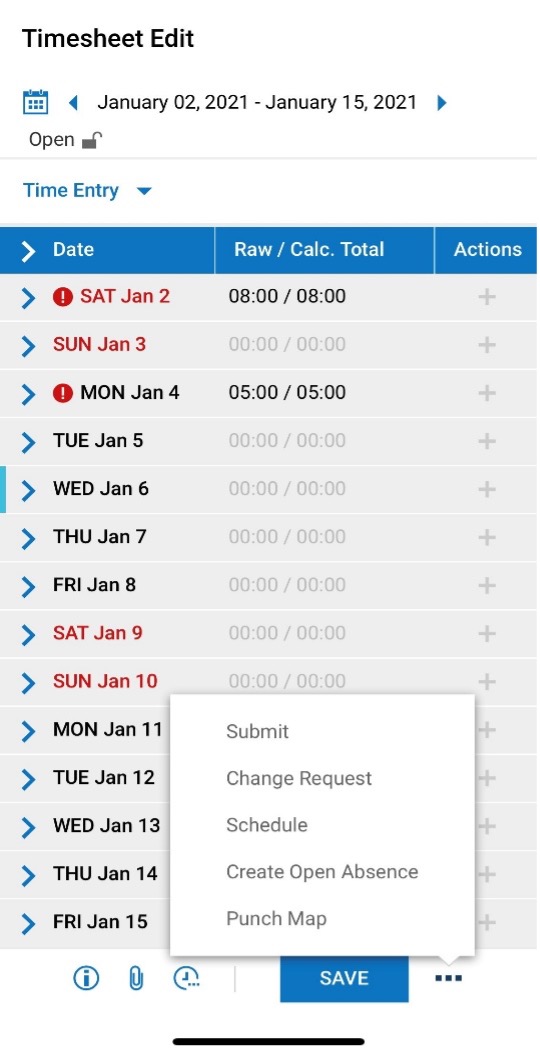
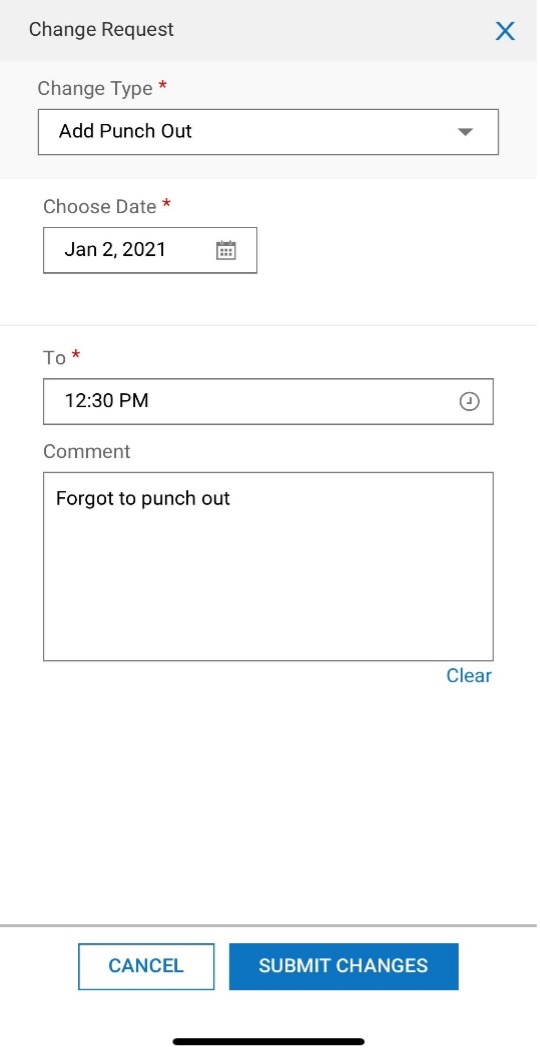
2. Select Ellipsis at the bottom of the page
3. Select Submit
4. Read Attestation
5. Select Submit
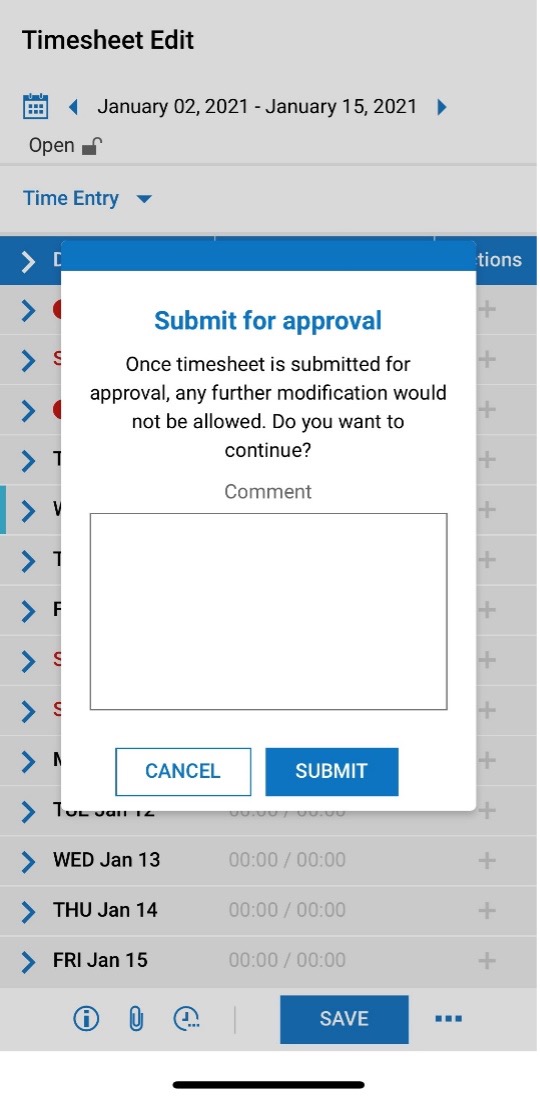
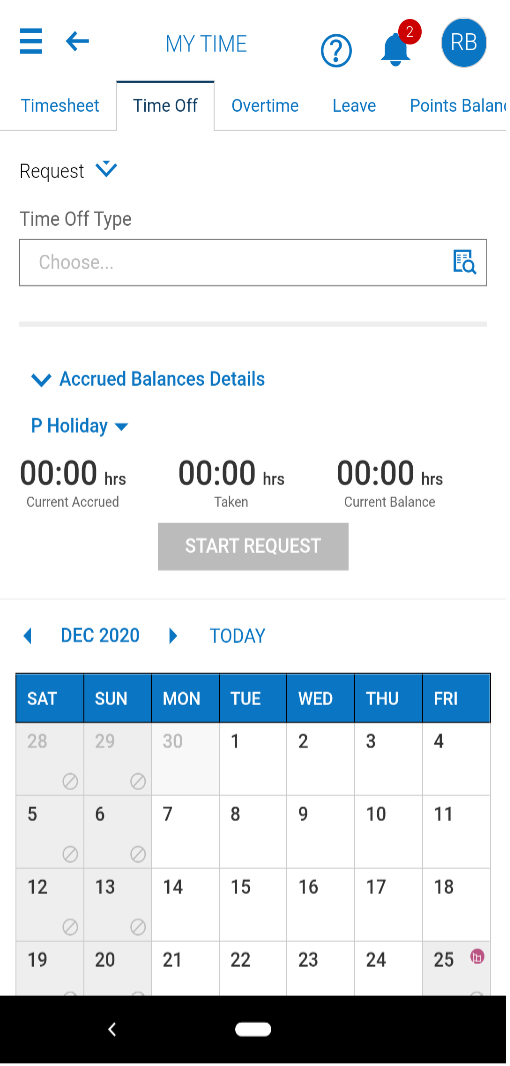
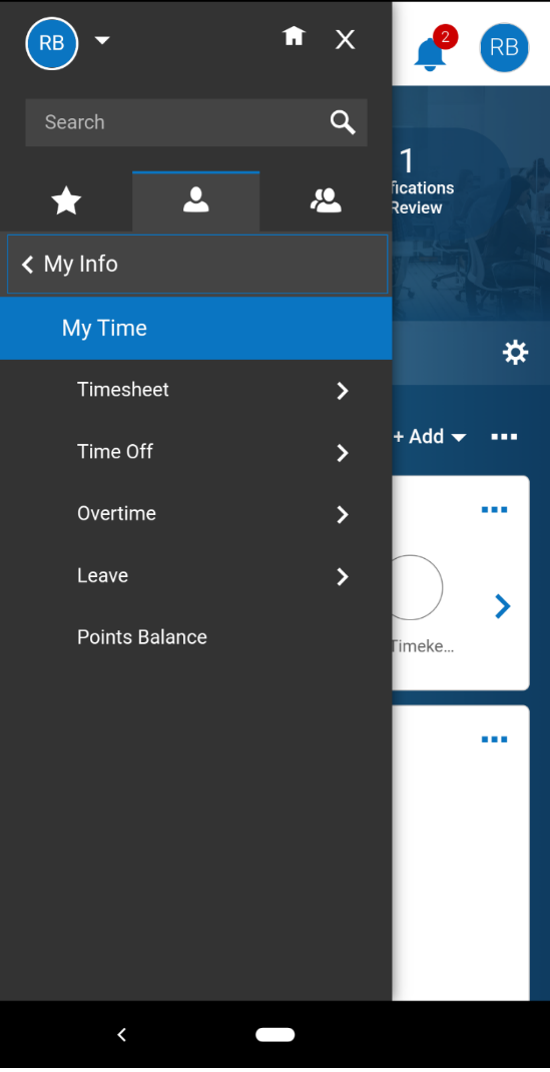
2. Click on My Info
3. Select My Time
4. Select Time Off from the dropdown menu
5. Select Request
6. Select Time Off type
7. Select Start Request
8. Select Request Type and select date(s)
9. Submit request
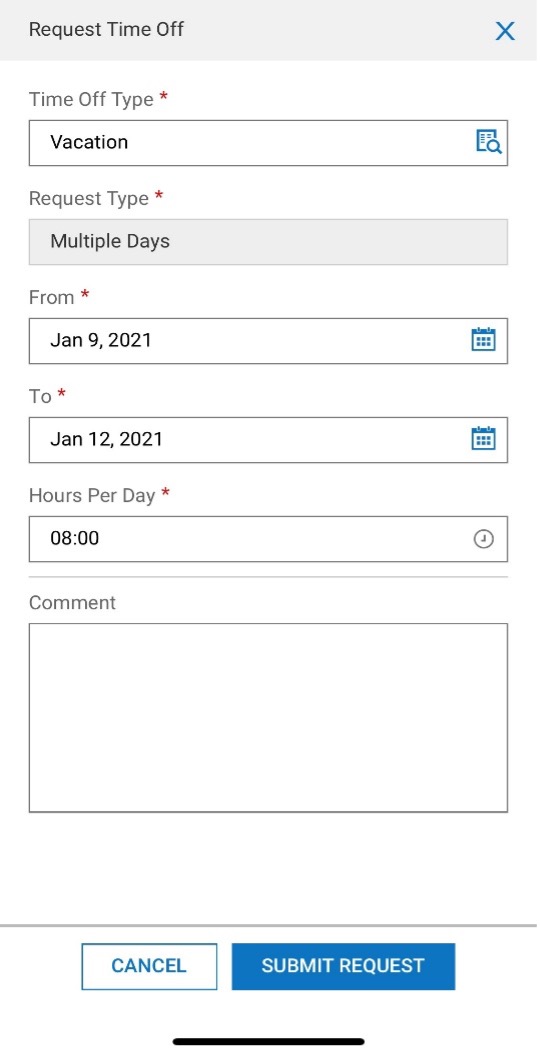
Kronos Web
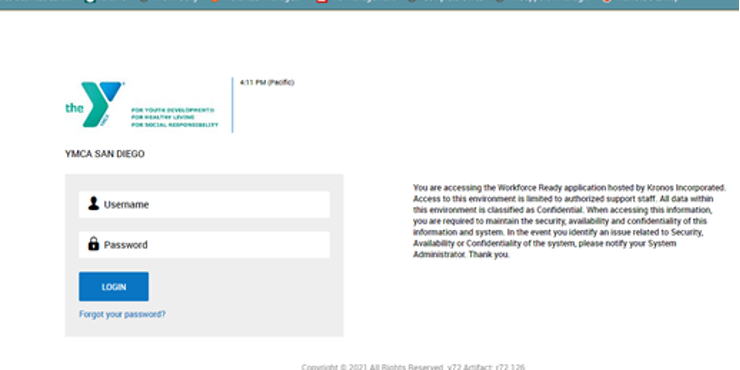
2. Username is your 6-digit Employee ID number
3. Password: The initial default password is Kronos@12(case sensitive)
– Upon login, the system will be prompt you to change your password. Your new password must contain at least 8 characters including 1 capital letter, 1 number, and 1 symbol.
You will be asked for a VCA (Virtual Code Authentication)
A Virtual Code Authentication is a method for verifying your identity.
This method of verification uses a six-digit code sent to your phone or email.
The code is used in addition to your username and password.
VCA helps us to protect your sensitive personal data.
To get your VCA, enter your phone number and email address and hit Save. A code will be sent to you. Use this code to finish setting up your Mobile App.
Make sure you click the box that saves the VCA code so you do not have to enter it each time.
Once you are in the system, your Dashboard will appear:
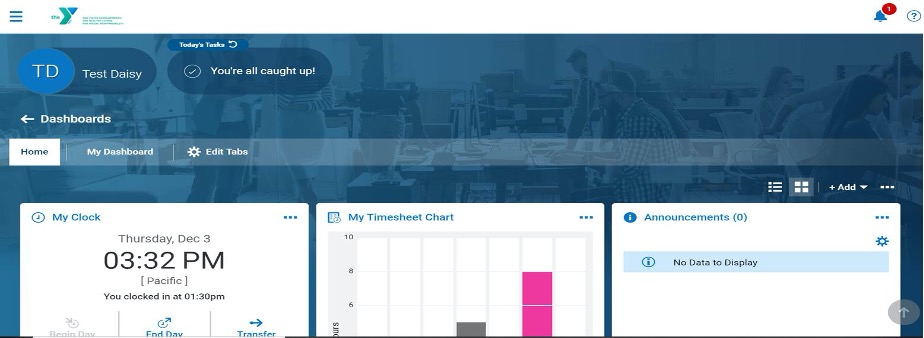
2. Click My Timesheet Chart
3. Select the calendar image or blue arrows to toggle between pay periods as needed
Please take a moment while clocked in, to review your punches for the pay-period.
If a comment/correction is needed follow the steps below.
2. Click My Timesheet Chart
3. Select Change Request
4. Select Change Type from dropdown menu
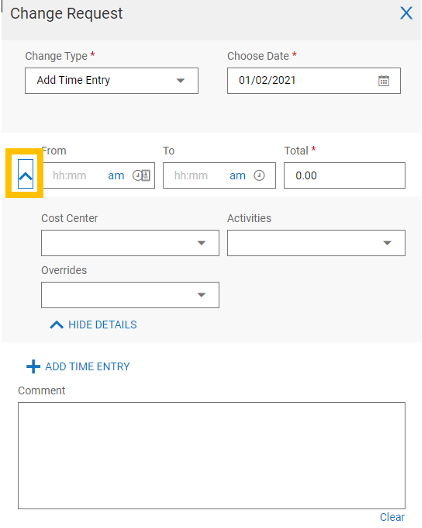
To add a missing entry:
– Select (Add Extra Pay & Counter Adjustment, Add Punch In, Add Punch Out, Add Time Entry- missed In & Out punch in one day) as needed
– Complete mandatory fields designated by red asterisk
– Click Submit Changes to send change request to Supervisor
– You will receive a notification upon change request approval
To cancel time off:
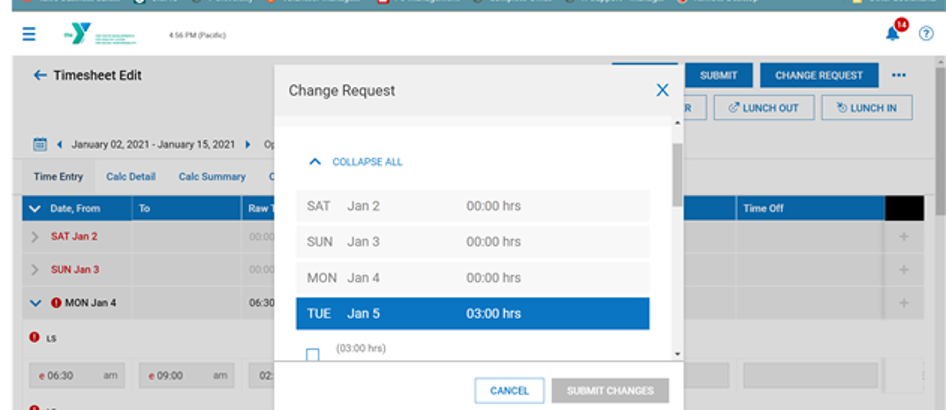
– Select Cancel Time Off
– Select day
– Click Submit Changes to send change request to Supervisor
– You will receive a notification upon change request approval
To modify an existing entry:
– Select (Modify Cost Center, Modify Extra Pay & Counter Adjustment, Modify Punch In, Modify Punch Out, Modify Shift Premium, Modify Time Off) as needed
– Select day
– Select blue arrow next to the time that you would like to modify
– Complete mandatory fields designated by red asterisk
Be sure to select AM/PM where necessary
– Click Submit Changes to send change request to Supervisor
– You will receive a notification upon change request approval
• Click on the star logo to access My Favorites
• Select My Time Off Request
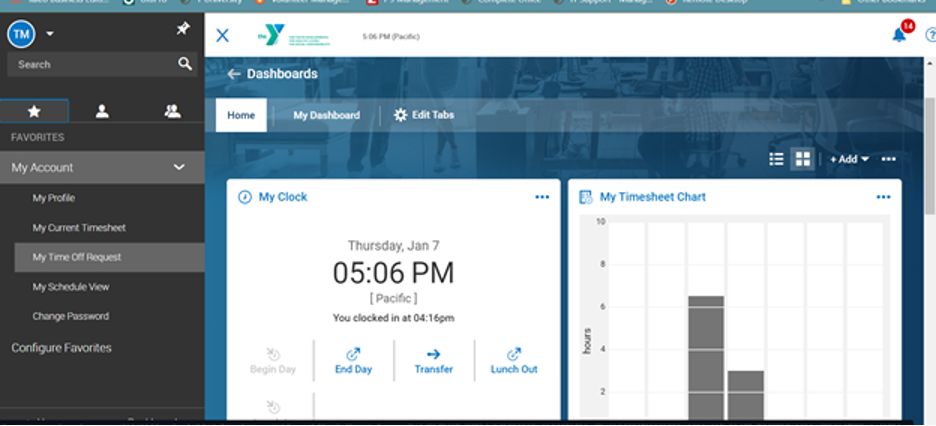
• To search for Time Off Type you can type in the search bar or select the paper and magnifying glass image, then select time off type (ie. Vacation, PT Sick, etc.)
• Now select date or multiple days from the calendar
When selecting multiple days, be sure to remove unscheduled days in your request (ie. Weekends if you are not scheduled for weekend shifts)
• Select Start Request
• In Hours Per Day field, type in the amount of time you are requesting for the day/days selected
You may request up to the amount of hours in your scheduled shift
• Review information in the mandatory fields designated by red asterisk
Note: Comment field is not required
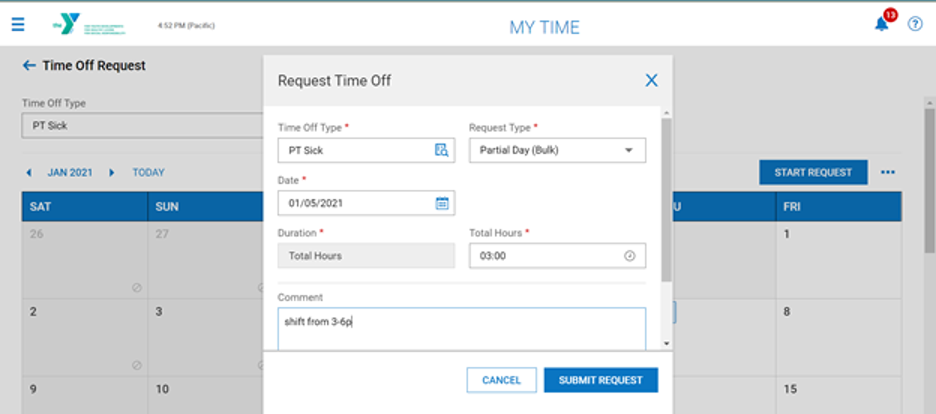
• Click Submit Changes to send change request to Supervisor
• You will receive a notification upon change request approval
• Click My Timesheet Chart
• Review your timesheet for accuracy
For any changes, submit a Change Request (see Change Request instructions)
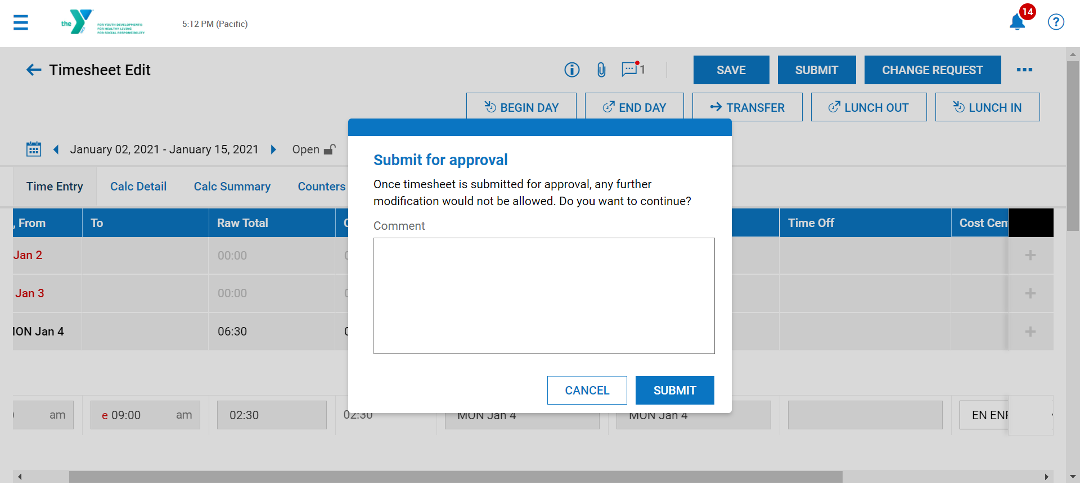
• Once timesheet is accurate, click Submit
• A pop up window will appear, click Submit
• Click on the star logo to access My Favorites
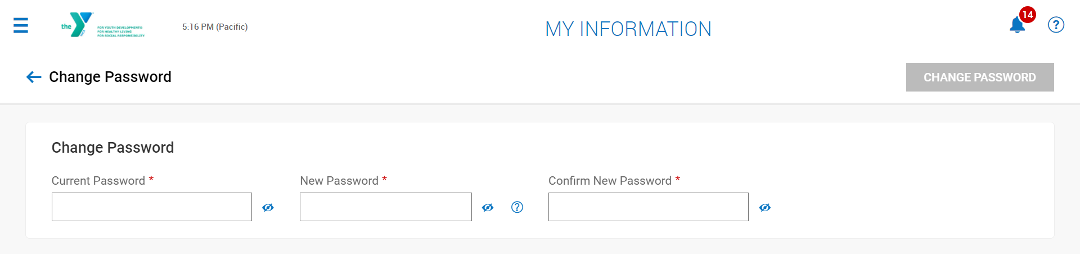
• Select Change Password
• Enter Current Password, New Password and Confirm New Password
Kronos Time Clock
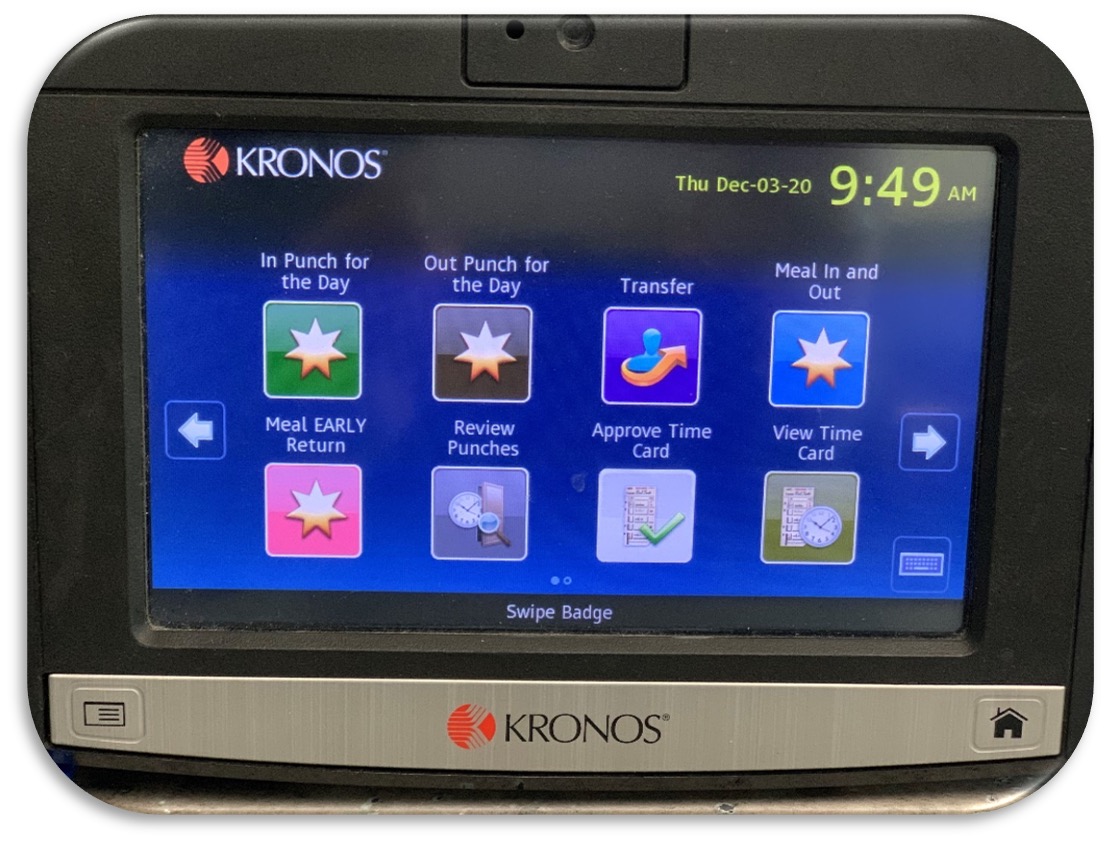
Time clock can be used to punch in for the day, out for the day, meal in and out, transfer cost centers, view timecard, review punches and approve timecard.
PLEASE NOTE: Swipe cards have been deactivated. Badge numbers = Employee ID numbers. Cost Centers = Department/Secondary Role
• Enter badge number (please note: employee ID number is your badge number)
• Enter badge number (please note: employee ID number is your badge number)
• Enter badge number (please note: employee ID number is your badge number)
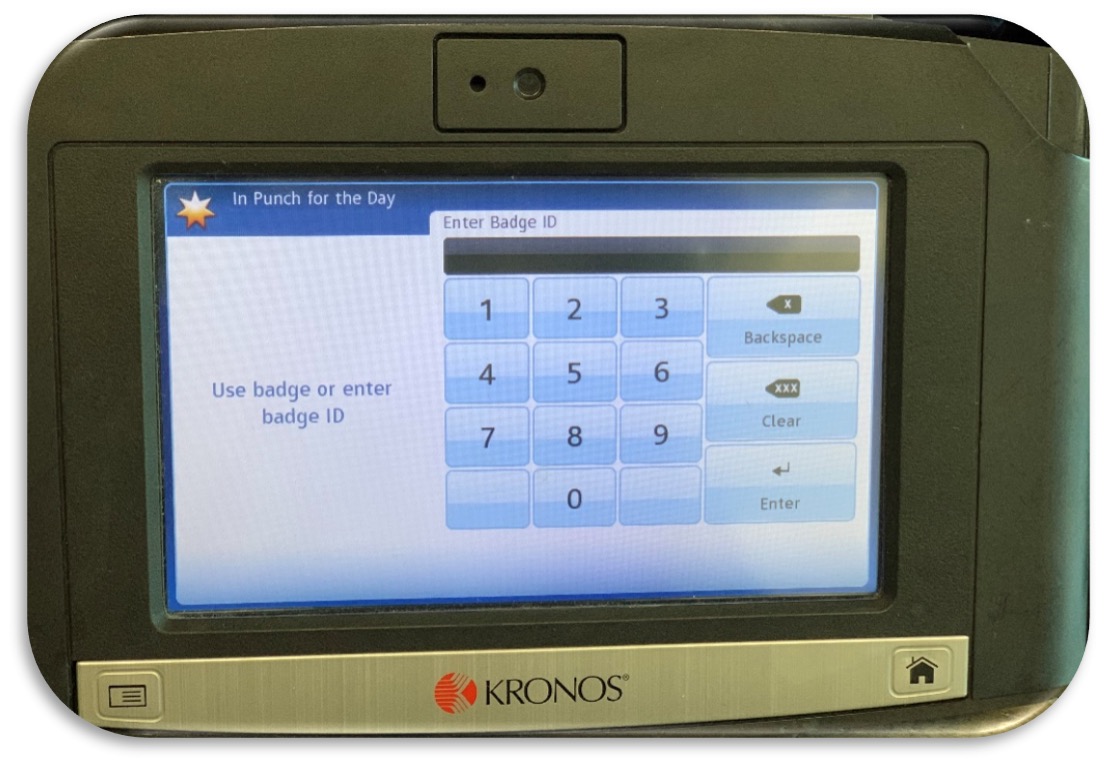
• Enter badge number (please note: employee ID number is your badge number)
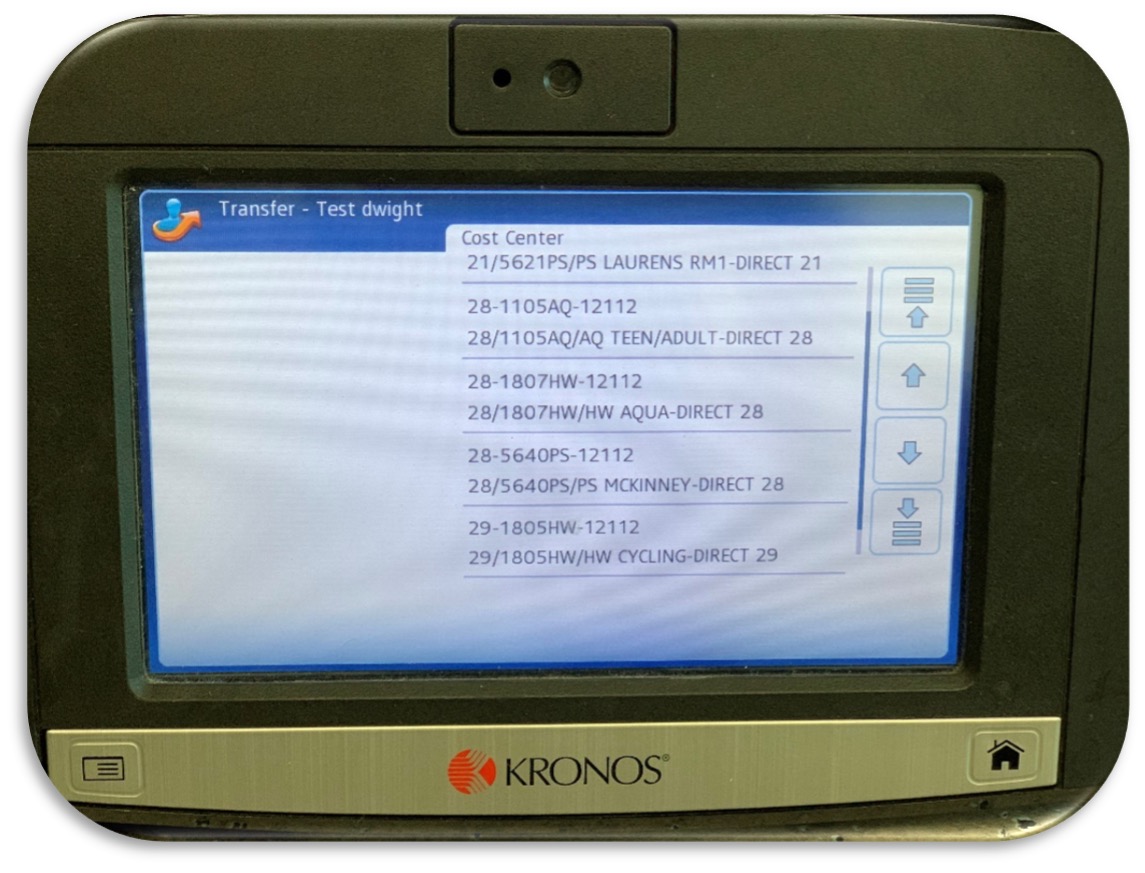
• Select Cost Center using up and down arrows to see all available options (the department/position)
• Enter badge number (please note: employee ID number is your badge number)
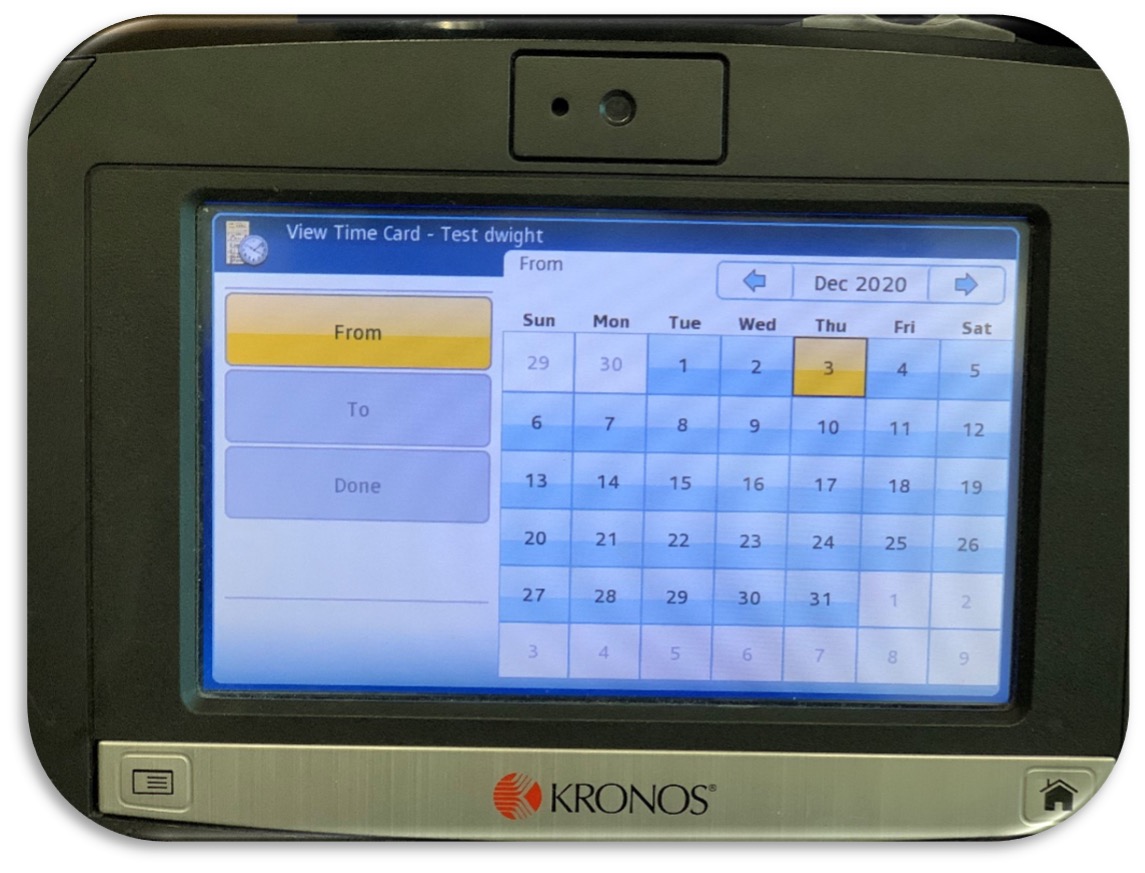
• Select dates to view
• Click Submit
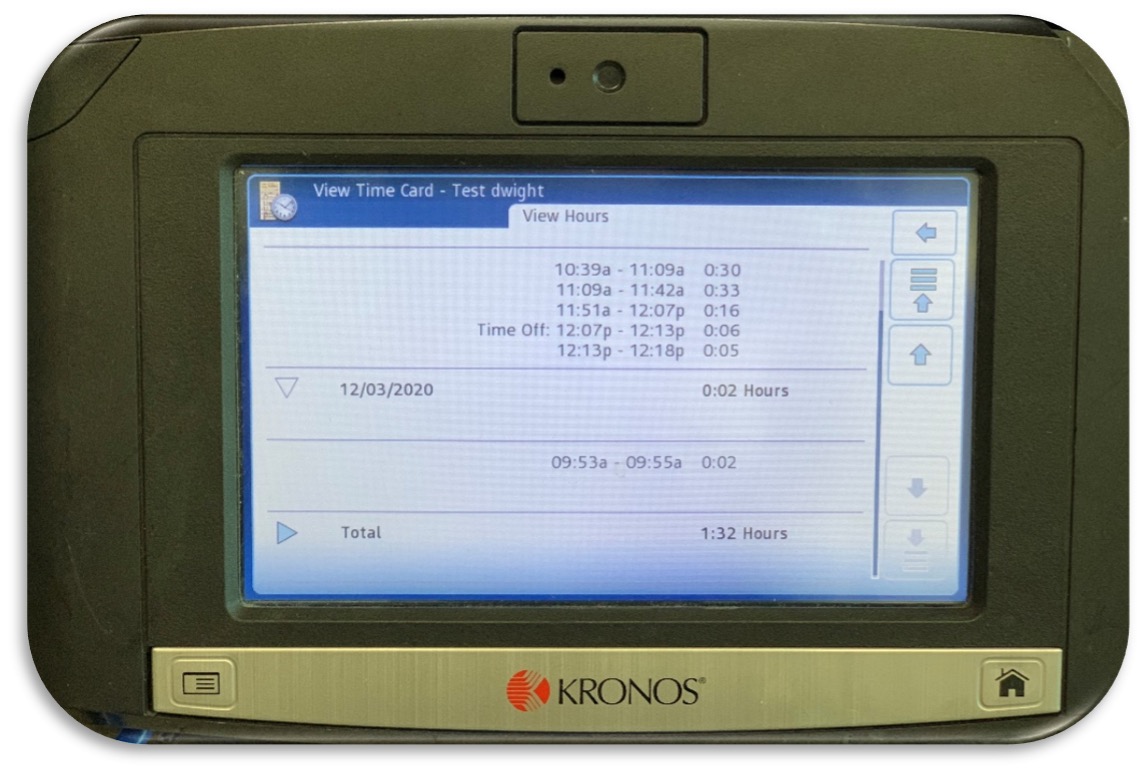
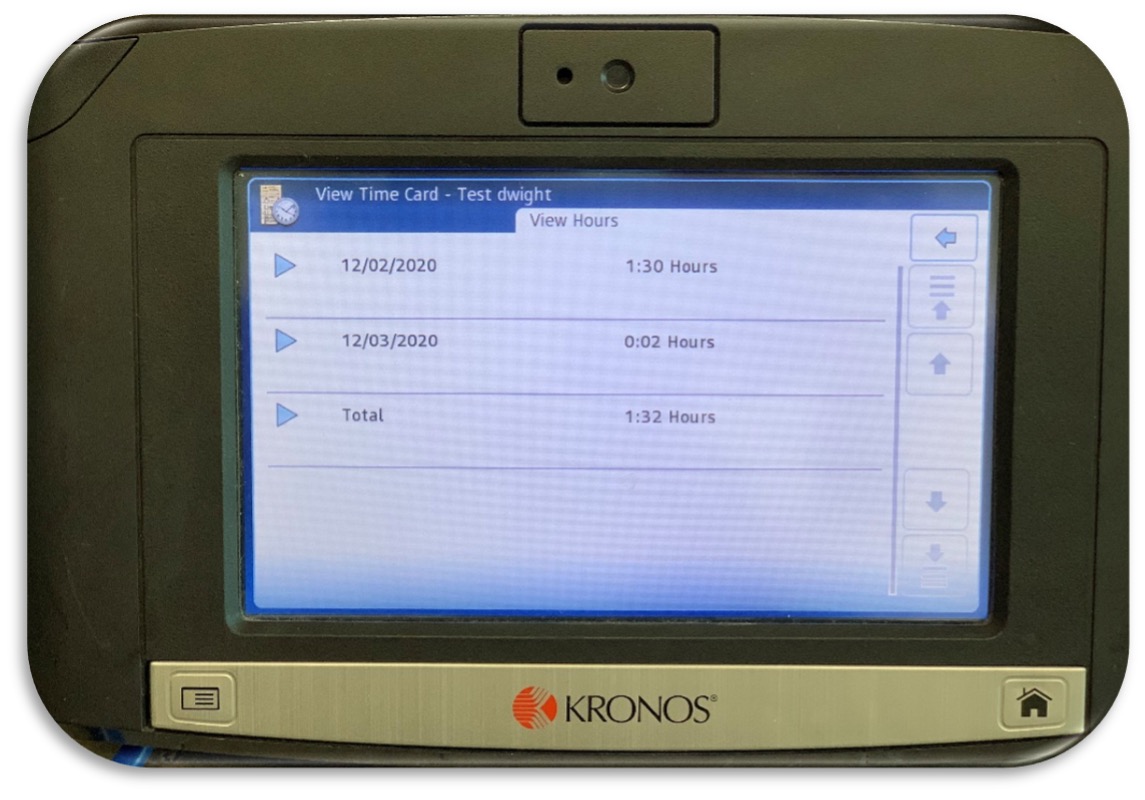
• Down arrow will provide daily punch details
• Enter badge number (please note: employee ID number is your badge number)
• Down arrow will provide daily punch details
To Approve Timecard
Please take a moment while clocked in, to review your punches for the pay period. If a comment is needed, select the date and click edit, then type in a comment and click Submit.
(Please note: Only one comment can be made from the Timeclock. It will automatically approve once this comment is made. To request multiple changes, please use the mobile app or web platform)
Once all changes/comments have been made:
• Select Approve Timecard
• Enter badge number (Employee ID number)
• Select Pay Period to approve
• Please note: All non-exempt employees will be compensated the equivalent of two (2) minutes (de minimus time) for approving their timecard. If you believe you incurred more than two minutes, please contact your supervisor.
Frequently Asked Questions
• You will start submitting your time off requests on January 30, 2021
EO = Early Out (Employee punched out before their scheduled shift end
EI = Early In (Employee punched in before scheduled shift started
LO = Late Out (Employee punched out after their scheduled end time
AB = Absent (Employee did not punch in for a shift based on their schedule)
LS = Long Shift (An unusually long period of time between an in-punch and out-punch)
SL = Short Lunch (Employee took a shorter lunch break than the standard lunch time)
LL = Long Lunch (Employee took a longer lunch than the standard lunch time)
The YMCA of San Diego County requires all employees to accurately record all hours worked. This includes recording the time that the employee begins and ends any work period as well as the time that the employee begins and ends meal periods (non-exempt employees).
In the event you believe you have been asked to sign a timesheet and/or approve a timecard that is not accurate, please refrain from doing so and immediately contact the Payroll Administrator or Team Headquarters Human Resources.
Failure to comply with this policy may result in disciplinary action, up to and including termination. Further, altering, falsifying, tampering with time records, or recording time on another employee’s time record may result in disciplinary action, including termination of employment.